


Every Shopify store cuts prices over Black Friday and Cyber Monday. Most of them do it the same way: 20% off everything, 25% off everything, a banner, a countdown. Shoppers scroll past ten of those before lunch. And a big chunk of that discount goes to people who would have paid full price anyway.
Name-your-price gives you a different kind of deal. Shoppers choose what they pay for the products you pick, and a price floor makes sure nothing sells below what you've already approved. Offer Your Price, our pay-what-you-want app for Shopify, lets you set it up in minutes, with no approval queue to manage. This guide explains what name-your-price is, where it works best for BFCM 2026, and how to set it up step by step before November 27.
Key Takeaways
BFCM 2026 runs from Friday, November 27 to Monday, November 30. Last year, Shopify merchants sold a record $14.6 billion over the same weekend, up 27% from 2024 (Shopify).
Shopify has no built-in name-your-price feature. Discount codes and variant price tiers only give shoppers fixed prices.
With Offer Your Price, you set a minimum and an optional maximum. Any offer inside that range goes straight to the cart. No back-and-forth, no approvals.
It works best on clearance, overstock, high-margin items, and bundles. Keep your bestsellers at their normal sale price.
Pro starts at $5.99/month, and every plan starts with a 7-day free trial.
Everything You Need to Know About Shopify Name-Your-Price Deals for BFCM 2026
Here's the whole topic in one table.
Question | Short answer |
|---|---|
What is name-your-price? | Shoppers enter or pick their own price for a product, within limits you set |
Does Shopify offer it natively? | No. You need an app like Offer Your Price; the best pay what you want app on Shopify. |
Will shoppers lowball me? | Not below your floor. Offers under your minimum are blocked automatically. |
Do I approve each offer? | No. Offers inside your range go straight to the cart or checkout. |
Best products for it? | Clearance, overstock, high-margin items, bundles, and gift sets |
Best app for it? | Offer Your Price: price floor, presets, suggested price, and instant checkout in one app |
Cost? | Pro from $5.99/month, with a 7-day free trial |
Setup time | A few minutes, no code |
When to set it up | Early November, so you can test before November 27, 2026 |
What Is Name-Your-Price/PWYW on Shopify?
Name-your-price (also called pay-what-you-want or "make an offer") lets shoppers choose what they pay for a product. You decide three things one time:
Which products get the offer
The lowest price you'll accept, for example, $40
An optional highest price
After that, the shopper does the rest. They type a price or tap a preset, and if it's inside your range, they check out like any other order. If it's outside your range, they see a short error message telling them what's allowed.
Think of it like haggling at a market stall, except the stall owner set the lowest price in advance and never has to say a word.
Can Shopify Do Name-Your-Price on Its Own?
No. Shopify sells every product at the price you set. There's no field where a shopper can enter their own amount. So you have three choices:
Use discount codes or automatic discounts. Everyone who has the code gets the same discount. It's a price cut, not a choice.
Create variant price tiers. Add variants like "$40," "$50," and "$60" to one product. Shoppers can only pick from the amounts you created, and the product page gets cluttered fast.
Install a name-your-price app. This is the only way to let shoppers set their own price while you keep control of the floor. With the easiest-to-run app like Offer Your Price, you create a rule, set your range, and switch it on.
Name-Your-Price vs Discount Codes vs Make-an-Offer Apps
Feature | Discount code | Variant price tiers | Make-an-offer app with approvals | Offer Your Price |
|---|---|---|---|---|
Shopper chooses the price | No | Only from fixed variants | Yes | Yes, typed or from presets |
Protects your margin | Same cut for everyone | Yes | Only if you reject low offers by hand | Automatic minimum and maximum |
Work for you during the sale | None | None | Review every offer | None |
Shopper waits for a reply | No | No | Yes | No, straight to cart |
Shows what shoppers will pay | No | Partly | Yes | Yes, original vs offered price in Logs |
During BFCM, nobody waits. A shopper who has to wait hours for you to accept an offer has already bought somewhere else. That's why Offer Your Price has no approval step.
Why Use Name-Your-Price/PWYW on Shopify for BFCM 2026?
Here are the 5 top reasons to add name-your-price to your Shopify store this BFCM.
1. It Stands Out from Every Other "25% Off"
On Cyber Monday 2025, discounts peaked at 25% off listed prices for apparel and 31% for electronics. When every store shows the same percentage, nobody stands out. "You choose the price" is a different offer, and it gives shoppers a reason to stop scrolling.
2. Your Floor Protects Your Margin
A sitewide discount cuts the price for everyone, including shoppers who would have paid full price. With name-your-price, you set the lowest price you'll accept. Shoppers can go above it, but never below.
3. No Approvals, No Lost Sales
Shopify merchants hit a peak of $5.1 million in sales per minute on Black Friday 2025 (Shopify). That's not a weekend to be answering offers one by one. Offers inside your range go straight to checkout.
4. Clearance and Overstock: Finally Move
End-of-season stock and extra units tie up cash and shelf space. A "name your price" deal on those products gives shoppers a reason to buy now, before the new season arrives.
5. You Learn What Shoppers Will Actually Pay
Every offer is logged with the original price and the price the shopper paid. After the sale, you know exactly where your real price points are. Use that for your January clearance and next year's BFCM.
Which Products Should You Sell with Name-Your-Price Pricing in Shopify?
Name-your-price isn't for every product. It works best where you'd happily take a range of prices, and where a "you choose" deal feels like a reason to buy now.
Product type | Why it fits | Suggested setup |
|---|---|---|
Clearance and end-of-season stock | You want it gone before the new season | Fixed minimum near cost, plus a margin you're happy with |
Overstock | Too many units tie up cash | Preset amounts, so shoppers don't lowball |
High-margin items | You have room to move on price | Suggested price slightly below list |
Bundles and gift sets | Shoppers value them differently | Custom + Presets, with a default preset |
Donation or "support us" items | The price is the shopper's choice | Custom amount, no maximum |
Best Shopify plan for BFCM 2026: keep your bestsellers at your normal sale price, and use name-your-price on the products you most want to move.
How Offer Your Price Protects Your Margin
Offer Your Price works with rules. Each rule decides which products get the offer, what price range is allowed, and how the offer looks on your storefront.
Set the Rules: A Floor, an Optional Ceiling, and Presets
Every rule has a price range. This is what keeps your margin safe.
Minimum price (your floor): the lowest price a shopper can offer. Anything below it is blocked with your error message, for example, "Price must be at least {min}." The {min} part fills in the real amount, so shoppers know exactly what's allowed.
Maximum price (optional ceiling): leave it blank for no limit, which suits donation-style products. Or set one, so shoppers can't overpay by mistake.
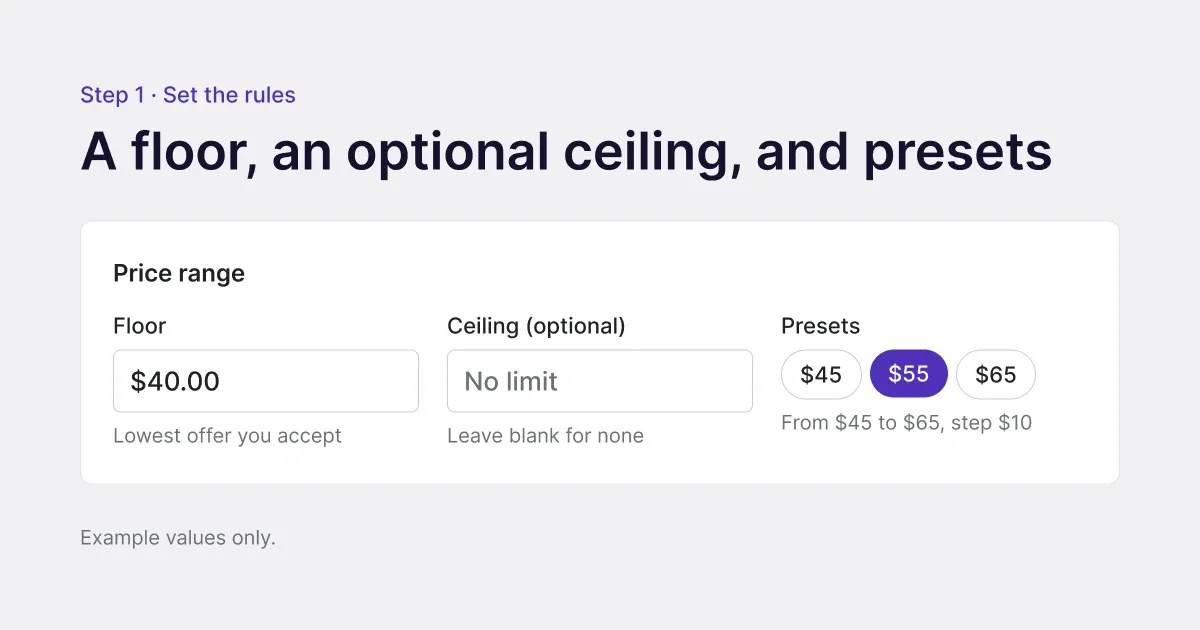
You can set the range in two ways:
Fixed amount (Pro and Business): the same floor and ceiling for every product in the rule.
Product price + threshold (Business): the limits follow each product's own price, using a fixed amount or a percentage. One rule then works across products with very different prices.
Guide the Offer: Presets, a Suggested Price, and a "Popular" Tag
A blank price box can feel like a puzzle. Offer Your Price gives you three offer methods, so you decide how much choice to give:
Custom Amount: Shoppers type any price inside your range.
Preset Amounts: Shoppers tap one of the prices you set.
Custom + Presets: Both. Shoppers tap a preset or type their own.
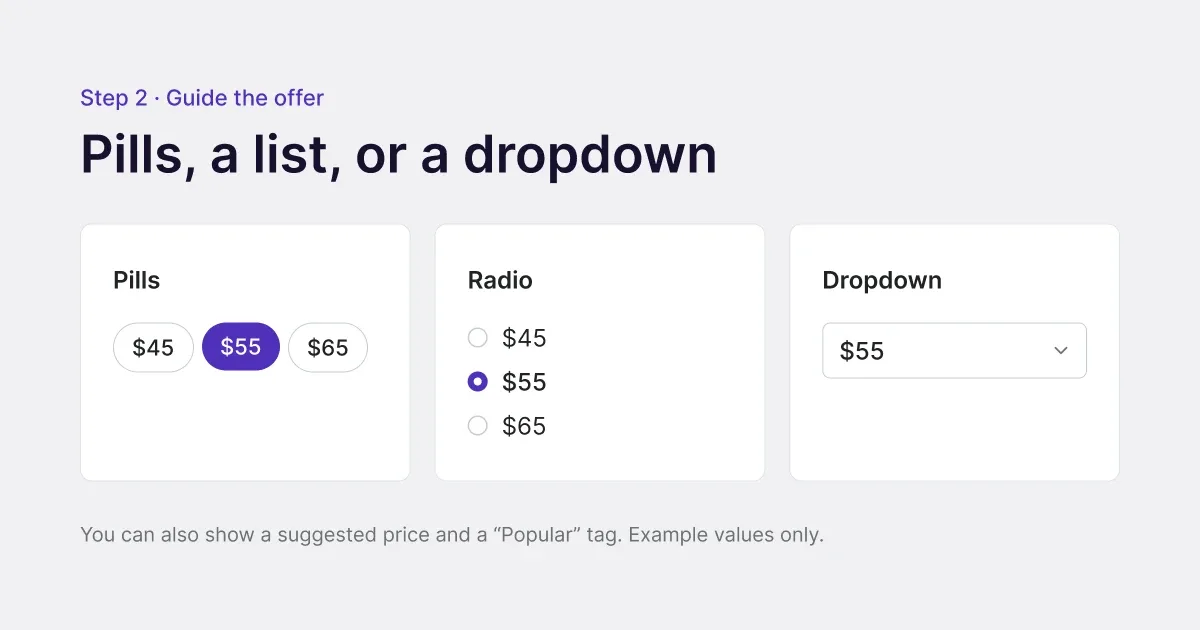
Presets can show as pill buttons, a radio list, or a dropdown. You can give each one a short label, such as "Best offer," and pre-select one as the default.
On top of that, you can turn on two nudges:
Suggested price: a gentle hint toward the amount you'd prefer.
"Popular" tag: a line such as "People often buy at $25." Use it only if it matches real buying behavior in your store.
Cart Checkout or Draft Order?
You choose how accepted offers are checked out.
Cart checkout | Draft order | |
|---|---|---|
How it works | The offered price applies in the normal cart | The shopper goes to an invoice checkout |
Shopper experience | Like any product, it combines with other cart items | A separate checkout for the offer |
Best for | Busy BFCM stores where shoppers buy several items | Stores that want each offer on its own invoice |
Either way, there's no approval step. If the offer is inside your range, the shopper buys.
Hide the Price for "Mystery Deals"
Two switches turn a product into an offer-only product: hide the Add to cart button, and hide the original price. Shoppers then only see the offer form. It works well for "mystery deal" products during BFCM. If you want shoppers to see how good their deal is, keep the original price visible.
Show Offers on Collection Pages Too
Shoppers browse collections during BFCM, not just product pages. Turn on offers for product cards, and the offer form shows on your collection and search pages too.
Offer Your Price Pro vs Business: Which Plan Should You Choose this BFCM?
Both plans let shoppers name their price. Business adds control over who sees the offer and where it applies.
Feature | Pro | Business |
|---|---|---|
Price | $5.99/month or $59.99/year | $7.39/month or $81.39/year |
Fixed minimum and maximum | Yes | Yes |
Presets in three styles | Yes | Yes |
Suggested price and "Popular" tag | Yes | Yes |
Hide price and Add to cart | Yes | Yes |
Offers on collection pages | Yes | Yes |
Apply to specific products | No, rules apply to all products | Yes |
Limit by country | No | Yes |
Limit by customer tag | No | Yes |
Limits based on product price + threshold | No | Yes |
Best for BFCM: if you only want name-your-price on a handful of clearance products, choose Business. Specific-product targeting is the main reason to upgrade. Every plan starts with a 7-day free trial.
How to Set Up Name-Your-Price for BFCM (Step by Step)
You can do this in a few minutes with Offer Your Price. No code, no developer. Set it up in early November and test it before November 27.
Watch Offer Your Price in action:
Step 1: Install Offer Your Price and Pick a Plan
Install Offer Your Price from the Shopify App Store. Choose Pro or Business if you want the offer on specific products only. Both start with a 7-day free trial.
Step 2: Add the App to Your Theme
From the app's Home screen, click Add to theme to place the Offer Your Price Block on your product pages. If you want offers on collection pages too, click Enable App Embed. Save in the theme editor. The block won't show on your storefront until it's added.
Step 3: Create Your Rule
Give the rule a clear name, such as "BFCM Clearance." Choose the products, pick an offer method (Custom Amount, Preset Amounts, or Custom + Presets), and set your minimum and maximum price.
Short on time? You can draft a rule with Shopify Sidekick from inside the app. It isn't published until you click Save on the rule screen.
Step 4: Add Presets and Guidance
Add your presets. To fill them in fast, use Quickly generate a range of presets: enter From, To, and Step, then click Generate. For example, 45 to 65 in steps of 10 gives you $45, $55, and $65. Then turn on a suggested price or a "Popular" tag under Extra Guidance for Customers.
Step 5: Write Your Customer Messages
Edit the messages shoppers see: the empty price error, the minimum and maximum price errors, and the "Added to cart" message. Keep them short and friendly. You can also change the price field's placeholder, which says "Enter your offer" by default.
Step 6: Pick a Checkout Mode, Test, and Go Live
In Settings > How offers are checked out, choose Cart checkout or Draft order. On your storefront, test three offers: one too low, one inside your range, and one too high. When the sale starts, switch on Rule is active. Shoppers can only submit offers while it's on.
Need more detail on any setting? See the Offer Your Price documentation.
Best BFCM Tips for Name-Your-Price
Use three presets on overstock. Three clear price tiers stop lowball offers and make choosing quick on mobile.
Set your floor before you set anything else. Work out the lowest price you're truly happy with, then add a small margin on top.
Run a "mystery deal." Hide the price and add to cart on one or two products, and promote them as "name your price, this weekend only."
Give VIPs early access. On Business, limit a rule to customers with a "VIP" tag and open it a day before Black Friday.
Stick to markets you ship to fast. On Business, limit offers to the countries where you can deliver before the holidays.
Pair it with bundles. Offer Your Price partners with Fether Frequently Bought Together, so you can run both on the same store. See how the two work together.
Mistakes to Avoid with Name-Your-Price on Shopify
Putting it on your bestsellers. Items that already sell at full price don't need a deal. Keep them at your normal sale price.
Using it on thin-margin products. If there's no room between cost and list price, there's no room for an offer.
Adding too many products. Fewer, better-chosen products make the offer feel special.
Forgetting to add the block. A rule won't show on your storefront until the Offer Your Price Block is in your theme.
Faking the "Popular" tag. Only show a popular price that reflects what shoppers really buy at.
Never test on a phone. Test a low, a valid, and a high offer on mobile before you promote anything.
Leaving the rule on after Cyber Monday. Switch off the rule (or edit the range) on December 1, so BFCM prices don't run longer than you planned.
What to Check After the BFCM Sale
After Cyber Monday, open the app's Home dashboard. It shows the sale's impact in four numbers:
Revenue generated from offers
Orders
Average paid price
Active rules
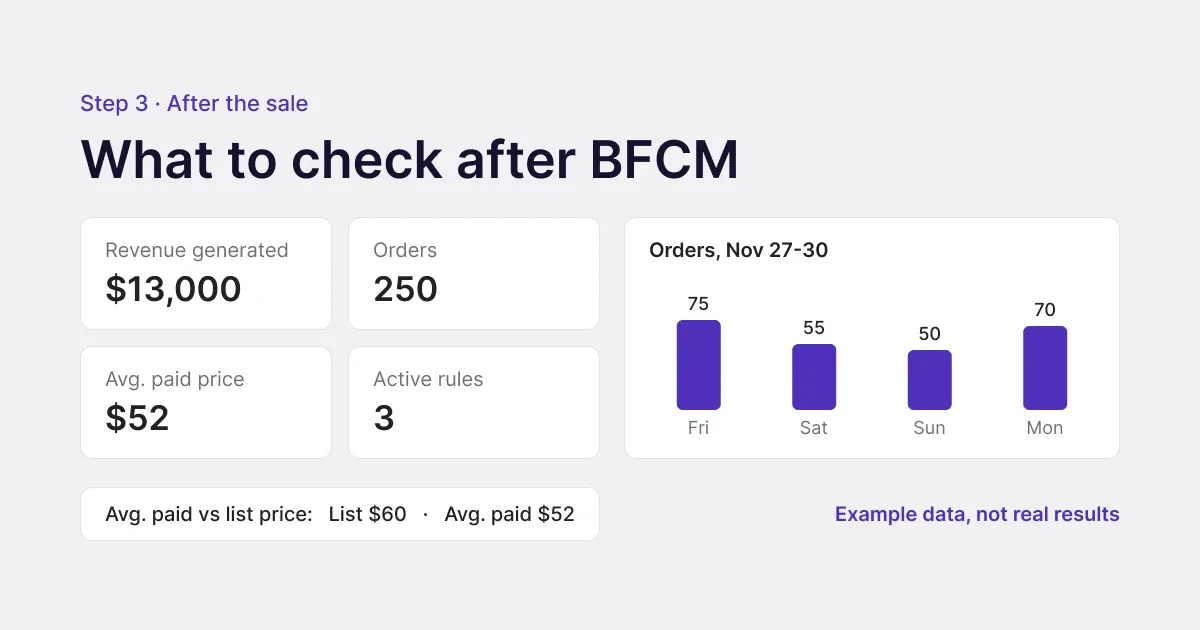
Example data, not real results. Your dashboard fills in once shoppers submit offers.
The Rules Management table shows offers and revenue for each rule, so you can compare your clearance rule with your bundle rule.
Then open Logs. Each row shows the order, product, quantity, original price, offered price, and date, and you can search by product or order ID. Comparing the original and offered prices shows what shoppers were actually willing to pay. Use it to set next year's floors and presets, or to price your January clearance.
Conclusion
BFCM doesn't have to mean marking down your whole catalog. Pick the products you most want to move, set a floor you're happy with, guide shoppers with presets or a suggested price, and let the offers run from November 27 to 30. Shoppers get a deal they control. You keep your margin.
Want the backstory? Read about the Offer Your Price launch and what changed in v1.3.
Install Offer Your Price on Shopify and launch your first name-your-price rule before Black Friday.
FAQs
Does name-your-price work for Black Friday?
Yes, if you use it on selected products with a minimum price. Shoppers get a deal they control, and your floor stops any sale below a price you've approved. It suits clearance, overstock, and high-margin items better than bestsellers.
How do I stop lowball offers on Shopify?
Set a minimum price on the rule. Offer Your Price blocks any offer below it and shows your error message. Preset amounts and a suggested price also steer shoppers toward the prices you want.
Do I have to approve each offer?
No. Offers inside your minimum and maximum go straight to the cart or checkout. There's no approval queue.
Can I hide prices on Shopify?
Yes. In an Offer Your Price rule, turn on hide the original price and hide the Add to cart button. Shoppers then only see the offer form.
Can I limit name-your-price to certain products, countries, or customers?
Yes, on the Business plan. It adds specific-product targeting, country limits, and customer-tag limits. On Pro, a rule applies to all products.
How much does Offer Your Price cost?
Pro costs $5.99/month or $59.99/year. Business costs $7.39/month or $81.39/year. Every plan starts with a 7-day free trial.
What's the best Shopify app for name-your-price?
Offer Your Price is built for it. It combines a price floor and ceiling, presets in three styles, a suggested price, hidden prices, and instant checkout with no approvals, starting at $5.99/month.
Article by
Muhammad JafferShopify & WooCommerce Expert
Muhammad Jaffer is a WooCommerce and Shopify expert with 7+ years in eCommerce development, SEO, and content. He builds conversion-focused storefront solutions and writes practical guides that help merchants turn traffic into revenue.
View all articlesOffer Your Price
Add Offer Your Price to your Shopify store
The best Shopify app for pay what you want pricing: let customers name their price while your limits protect the margin.
There’s More to Read
More practical guides from the Objects team.
 Guides
10 BFCM Bundle Ideas for Shopify in 2026 (That Protect Your Margins)
Skip the sitewide discount. Here are 10 mix-and-match BFCM bundle ideas for apparel, beauty, food, pets, electronics, and gifts, plus a 7-step Zyga Bundles setup to go live before November 27.
by Muhammad Jaffer · October 29, 2026
 Guides
Recurring Donations for Shopify Stores: What It Is and How to Do It
Shopify can't take recurring donations on its own. Learn what recurring giving is, why monthly donors stay for years, and how to set it up with Donate Now before Giving Tuesday.
by Muhammad Jaffer · October 14, 2026
 Guides
Shopify for Nonprofits (2026): Plans, the Donation Gap, and How to Fix It
Shopify works well for nonprofits selling merch and tickets, but its only native donation option is relabeled tipping. Here's what NPO plans include, where native donations fall short, and how to fix the gap online and in person.
by Muhammad Jaffer · October 4, 2026